Install on Azure
This document is intended to guide users through the deployment of Medplum on Azure using Terraform. It provides detailed instructions and configurations necessary to set up essential components such as a Virtual Network (Vnet), Azure Kubernetes Services (AKS) cluster, PostgreSQL database, Storage accounts, CDN, and Redis instances. The purpose is to ensure a smooth and efficient deployment process tailored to Medplum’s specific requirements, facilitating scalability, security, and high availability within their cloud environment.
This deployment option has been validated for production use and offers a robust foundation for your implementation. However, it provides a less-automated setup and requires significant operational expertise.
This is a complex multi-step process, and requires high proficiency with Azure, Terraform, Node.js, and command line tools.
Medplum strives to make this as easy as possible, but despite our best efforts, it is still challenging.
If you have any questions, please contact us or join our Discord.
High-level overview
To deploy Medplum in Azure, the process is divided into two parts:
- Static Infrastructure (using Terraform)
- Medplum App (Helm chart)
This division allows a fully customizable deployment, for example: if a customer wants to use an existing Kubernetes cluster, they can just deploy the Helm chart to it.
The Medplum application is configured using a secret in Azure Key Vault.
See Generate Configuration Secret
Azure Architecture
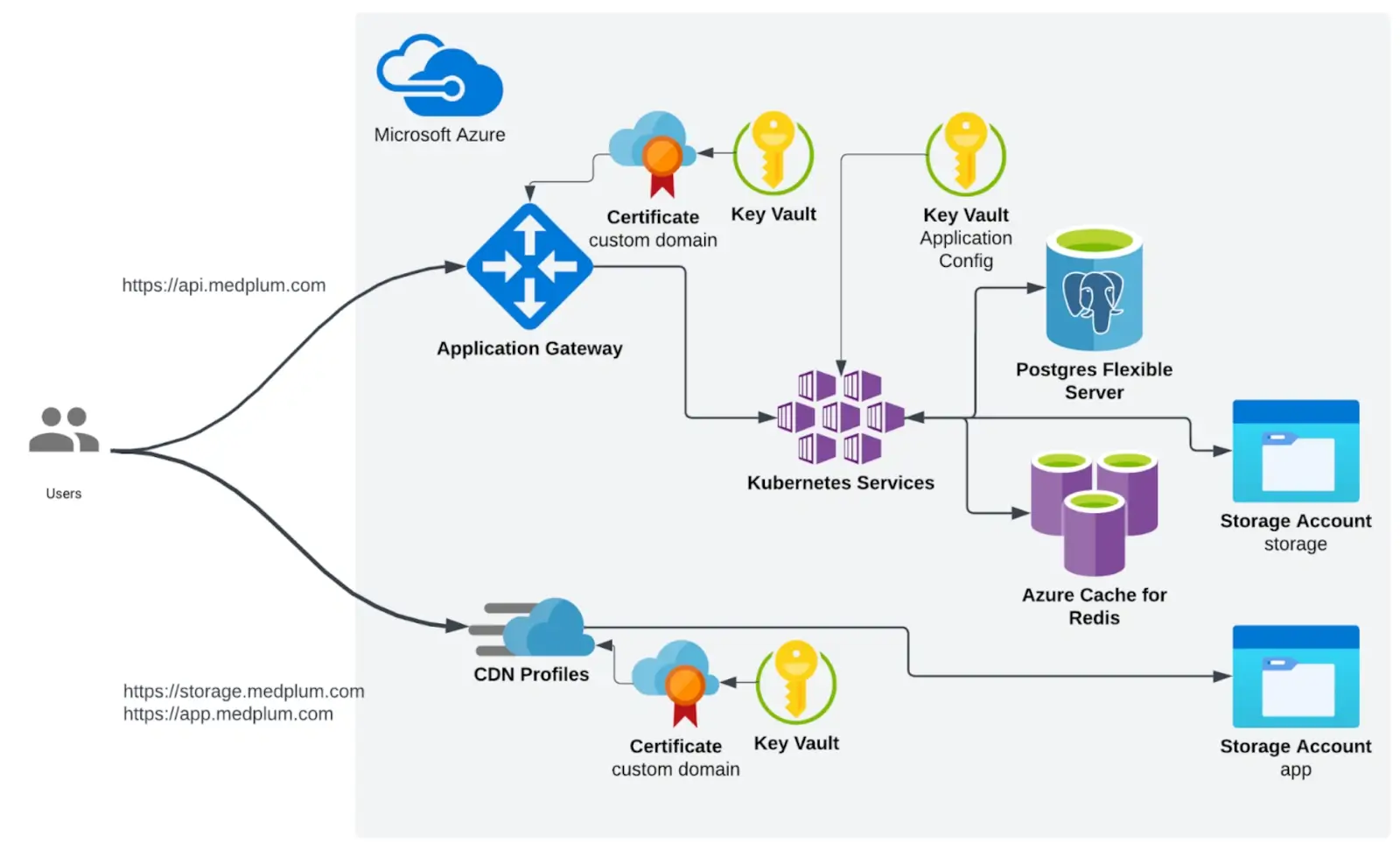
Infrastructure summary
- The Medplum backend (API) container runs in Kubernetes.
- The API is exposed using an Application Gateway, which is created in Terraform
- Azure App Service managed certificates are used. (they need to be created and exported to a Key Vault)
- We use a managed Redis cache and PostgreSQL flexible servers
- CDN profiles are used to expose the frontend (app)
High-level deployment process
- Create a Key Vault for certificates. Generate the certificates and make them available in the Key Vault.
- Deploy static infrastructure using Terraform (VNET, AKS, PostgreSQL, Redis, Storage Accounts, Application Gateway)
- With the values from Step 2, create the Medplum app configuration
- With the values from Step 2, point the DNS records
- Deploy the backend application using the Helm chart
- Copy the frontend files to the CDN storage, using the script
Azure Deployment
Prepare Certificates
You may choose another way of generating the certificates, i.e., Let's Encrypt, but in this case, we have used all Azure services.
You can generate managed certificates using App Service:
After the validation, you can export the certificates to a Key Vault from the certificates UI in Azure.
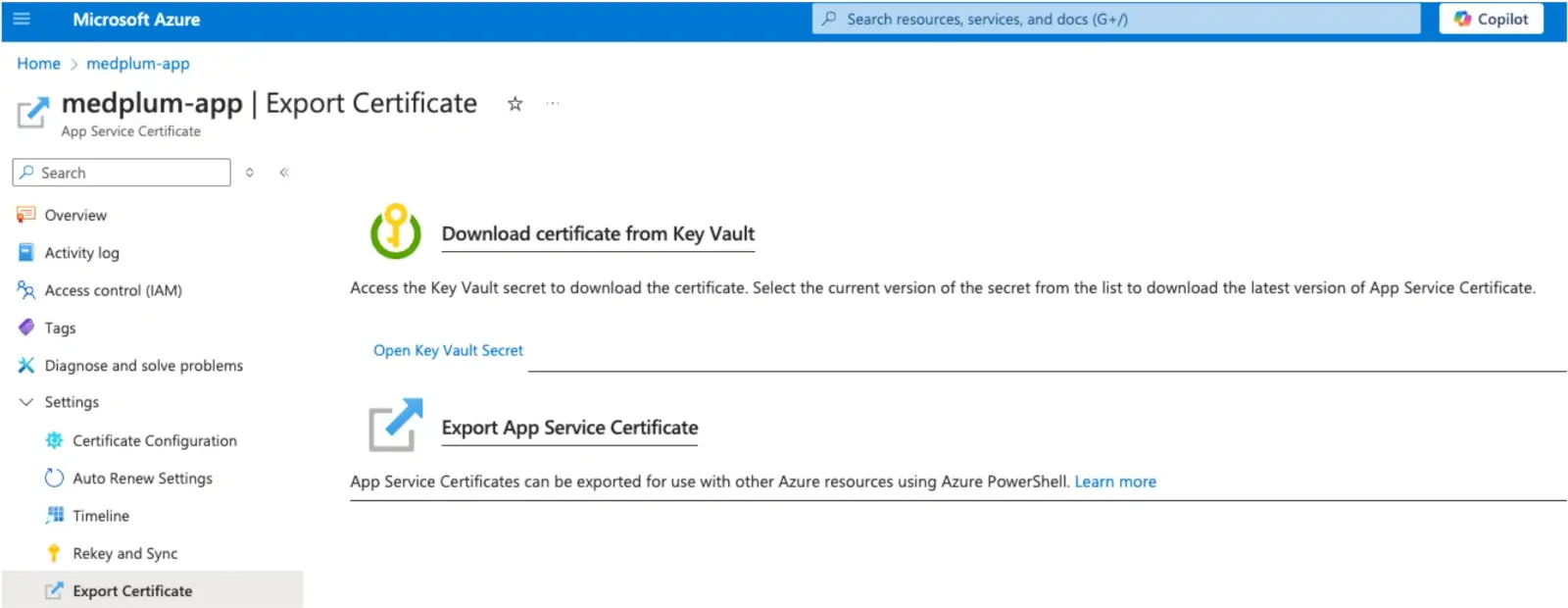
This step is required before deploying the Terraform code because the CDN requires the certificate to be generated for using custom domains.
Infrastructure Deployment
The terraform folder contains Terraform configurations for deploying infrastructure on Azure. The setup includes:
- Azure Resource Group
- AKS
- Log Analytics Workspace
- KMS, DES and Key Vault for AKS
- CDN profile
- Azure PostgreSQL Flexible Server
- Redis cache
- Azure Storage Accounts (for app and storage)
- Application Gateway (API entry point)
Prerequisites
- Terraform installed on your local machine.
- An Azure subscription with billing enabled.
- Azure CLI installed and authenticated with your Azure account.
Deployment Steps
Clone the Repository
Run:
git clone https://github.com/medplum/medplum
cd terraform/azure/
Configure Backend (Optional)
If you want to use a remote backend to store the Terraform state, uncomment and configure the backend.tf file.
Initialize Terraform
Modify the terraform.tfvars file to enter your project-specific values:
# Azure project configuration - Change these values to use your own project, region, and zone
project_id = "your-project-id"
region     = "your-region"
zone       = "your-zone"

# Common enforced labels - Change these values to use your own labels
labels = {
  env     = "your-environment"  # e.g., "dev", "staging", "prod"
  purpose = "your-purpose"      # e.g., "gke", "web", "database"
  owner   = "your-owner"        # e.g., "team-name", "project-owner"
}

# Azure
resource_group_name = "medplum" 	# Name of the RG to be created
location            = "eastus2"	# Infra region
tags = { 				# Tags that will be applied to all resources
  app = "medplum"
}
app_domain                = "app.azure.medplum.dev"  # CDN Custom domain
app_certificate_secret_id = "https://medplum-certs.vault.azure.net/certificates/medplum-appb0836994-69fff284f95" # The exported Certificate URI (See step 1)
Initialize Terraform
Initialize the Terraform working directory to download the necessary provider plugins and modules:
terraform init
Plan the Deployment
Generate and review an execution plan to ensure the configuration is correct:
terraform plan
Apply the Configuration
Apply the Terraform configuration to create the resources in Azure:
terraform apply
Terraform will output values needed for the next steps
(Some values redacted)
api_ip = "201.429.43.229"
cdn_endpoint = "medplumapp7d8c-endpoint-cv01.azurefd.net"
medplum_server_identity_client_id = "7f61-4b27-ae90d7ee8"
medplum_server_identity_name = "e93eec1b510a2d7f-medplum-server"
oidc_issuer_url = "https://eastus2.oic.prod-aks.azure.com/befe7abf94d5/b7-4516-b42a32/"
postgresql_dns_record = "medplum.postgres.database.azure.com"
redis_hostname = "medplum.redis.cache.windows.net"
postgresql_password = (sensitive value)
Use terraform output postgresql_password to retrieve the PostgreSQL password
Generate configuration secret
The configuration secret holds the Medplum application configuration, and it contains the connection strings to the rest of the infrastructure that we deployed before using Terraform.
1. Use an existing or create a new Key Vault in Azure
2. Prepare the Secret Data
Create a JSON file containing your secret data. Save it as secret_data.json.
{
    "port": 8103,
    "baseUrl": "http://localhost:8103/",
    "issuer": "http://localhost:8103/",
    "audience": "http://localhost:8103/",
    "jwksUrl": "http://localhost:8103/.well-known/jwks.json",
    "authorizeUrl": "http://localhost:8103/oauth2/authorize",
    "tokenUrl": "http://localhost:8103/oauth2/token",
    "userInfoUrl": "http://localhost:8103/oauth2/userinfo",
    "appBaseUrl": "http://localhost:3000/",
    "binaryStorage": "azure:YOUR_STORAGE_ACCOUNT:YOUR_BINARY_CONTAINER",
    "storageBaseUrl": "http://localhost:8103/storage/",
    "supportEmail": "\"Medplum\" <support@medplum.com>",
    "googleClientId": "397236612778-c0b5tnjv98frbo1tfuuha5vkme3cmq4s.apps.googleusercontent.com",
    "googleClientSecret": "",
    "recaptchaSiteKey": "6LfHdsYdAAAAAC0uLnnRrDrhcXnziiUwKd8VtLNq",
    "recaptchaSecretKey": "6LfHdsYdAAAAAH9dN154jbJ3zpQife3xaiTvPChL",
    "botLambdaRoleArn": "",
    "botLambdaLayerName": "medplum-bot-layer",
    "vmContextBotsEnabled": true,
    "defaultBotRuntimeVersion": "vmcontext",
    "allowedOrigins": "*",
    "introspectionEnabled": true,
    "database": {
      "host": "YOUR_DB_HOST",
      "port": 5432,
      "dbname": "medplum",
      "username": "medplumadmin",
      "password": "YOUR_DB_PASSWORD"
    },
    "redis": {
      "host": "YOUR_REDIS_HOST",
      "port": 6380,
      "password": "YOUR_REDIS_PASSWORD",
      "tls": true
    },
    "bullmq": {
      "removeOnFail": { "count": 1 },
      "removeOnComplete": { "count": 1 }
    },
    "shutdownTimeoutMilliseconds": 30000,
    "chainedSearchWithReferenceTables": true
  }
- Replace YOUR_DB_HOST and YOUR_REDIS_HOST with your database's hostnames or IP addresses and Redis instances.
- Replace YOUR_STORAGE_ACCOUNT and YOUR_BINARY_CONTAINER with the Azure Storage account and blob container used for Medplum Binary resources.
binaryStorageuses the formatazure:<storage-account-name>:<container-name>. - The Medplum server authenticates to Azure Blob Storage using its managed identity. That identity needs permission to read, write, delete, and generate user delegation SAS URLs for the container.
- This blob container stores runtime Binary resource contents. It is separate from the storage account used later to serve frontend static files through Azure CDN.
storageBaseUrlin this example keeps the Medplum/storage/proxy. For direct SAS URLs, see Set up presigned URLs.- Ensure the JSON content is correctly formatted and that any variables or placeholders are replaced with actual values.
3. Create a secret in the Key Vault:
Use the Azure CLI to add the secret data to your secret.
az keyvault secret set --vault-name "my-keyvault" --name "medplum-config" --file "secret_data.json"
Configure DNS
After deploying the infrastructure, you need to point your domains to the infrastructure created by Terraform.
-
From the Terraform output:
Retrieve the external IP address of the Application Gateway, and the CDN endpoint
api_ip = "201.429.43.229"
cdn_endpoint = "medplumapp7d8c-endpoint-cv01.azurefd.net"
- Update DNS Records:
In your DNS provider’s management console, create an A record pointing to the IP address, and a CNAME record pointing to the CDN address: - For
api.medplum.com:- Create an A record for api.medplum.com pointing to
201.429.43.229
- Create an A record for api.medplum.com pointing to
- For
app.medplum.com:- Create a CNAME record for app.medplum.com pointing to
medplumapp-endpoint-cv01.azurefd.net
- Create a CNAME record for app.medplum.com pointing to
Deploy the Backend API Using Helm
The Medplum Helm chart is a package containing yaml templates representing Kubernetes objects.
It will deploy:
- Deployment
- Horizontal Pod Autoscaler
- Service
- Ingress with Azure Application Gateway
- The ingress is optional. Users can choose to expose the API with other methods
- Service Account
Configure kubectl
Get credentials for your AKS cluster:
az aks get-credentials --resource-group [MY_RESOURCE_GROUP] --name [MY_AKS_CLUSTER_NAME] --overwrite-existing --admin
Replace [MY_RESOURCE_GROUP] with your Azure resource group name and [MY_AKS_CLUSTER_NAME] with your AKS cluster name.
Set up the Helm Repository
Add the Medplum Helm repository:
helm repo add medplum https://charts.medplum.com
helm repo update
Generate a local values.yaml file:
helm show values medplum/medplum > values.yaml
Edit the values.yaml File
Edit the values.yaml file to override default values, specifying your cloud provider and configuration source:
global:
  cloudProvider: azure
  configSource:
    type: "azure:[MY_KEY_VAULT_HOST]:[MY_CONFIG_SECRET_NAME]"
Replace [MY_KEY_VAULT_HOST] with the Key Vault host where the configuration secret is stored, for example my-vault.vault.azure.net. Do not include https:// or a trailing slash.
Replace [MY_CONFIG_SECRET_NAME] with the secret name created in the Generate configuration secret step.
Edit service account values
serviceAccount:
  annotations:
    azure.workload.identity/client-id: "[MY_AZURE_MANAGED_IDENTITY_ID]" # Azure Managed Identity Client ID
Replace [MY_AZURE_MANAGED_IDENTITY_ID] with the managed identity ID from the Terraform output:
medplum_server_identity_client_id = "7f61-4b27-ae90d7ee8"
Edit ingress values
(ingress is optional; customers can choose to use whatever method they like to expose the app)
ingress:
  deploy: true
  domain: [MY_DOMAIN] # Your domain name
  tlsSecretName: [TLS_SECRET_NAME] # Azure only
Replace [MY_DOMAIN] and [TLS_SECRET_NAME] with your actual domain and certificate secret name.
Create a Kubernetes secret from the Key Vault certificate
In Step 1, we prepared a certificate for api.medplum.com and exported it to a Key Vault. Now we need to download that certificate and create a Kubernetes secret with it:
# download cert
az keyvault secret show \
    --vault-name $KEYVAULT_NAME \
    --name $CERT_SECRET_NAME \
    --query value -o tsv \
   | base64 -d > mycert.pfx
# export public certificate
openssl pkcs12 -in mycert.pfx -clcerts -nokeys -out mycert.crt -passin pass:

# export private key
openssl pkcs12 -in mycert.pfx -nocerts -nodes -out mycert.key -passin pass:

# Create the secret in the cluster
kubectl create secret tls api-certificate \
  --namespace medplum \
  --cert=mycert.crt \
  --key=mycert.key
Replace the variables. (this will create a secret called api-certificate in namespace medplum)
Install the Application
helm install medplum medplum/medplum \
  --namespace medplum \
  --create-namespace \
  -f values.yaml
Upgrade the backend application
Backend upgrades use the standard Medplum Helm upgrade process. See Install on Kubernetes: Upgrade to a new version.
The Azure-specific settings in values.yaml, such as the configuration source, workload identity annotations, and ingress settings, continue to apply during the upgrade. This upgrades the Kubernetes backend only; frontend static assets are built and uploaded separately in the next section.
Deploy the frontend (App)
Serve your frontend application through Azure CDN and the blob storage account.
The Medplum app is a Vite-based single-page application. Environment variables are baked into the static build output at compile time — they are not read at runtime. You must set MEDPLUM_BASE_URL (and any other variables) before building.
Configure and build the app
From the root of the cloned Medplum repository, create packages/app/.env with your deployment values:
cat > packages/app/.env << 'EOF'
# Required: URL of your Medplum API server
MEDPLUM_BASE_URL=https://api.yourdomain.com/

# Optional: Pre-fill a specific OAuth2 client ID for all logins
MEDPLUM_CLIENT_ID=

# Optional: Enable Google Sign-In (provide your Google OAuth2 client ID)
GOOGLE_CLIENT_ID=

# Optional: Enable reCAPTCHA on the sign-in page (provide your reCAPTCHA v3 site key)
RECAPTCHA_SITE_KEY=

# Optional: Allow new users to self-register (set to "false" to disable)
MEDPLUM_REGISTER_ENABLED=true

# Optional: Enable AWS Textract integration
MEDPLUM_AWS_TEXTRACT_ENABLED=false
EOF
Replace https://api.yourdomain.com/ with your actual API domain. Then install dependencies and build:
npm ci --include dev
npm run build:fast
Upload to CDN storage account
Use the deploy-app-azure.sh script to upload the built static files to the CDN storage account. Replace medplumapp with your actual Azure Storage account name (available from the Terraform output):
STORAGE_ACCOUNT=medplumapp ./scripts/deploy-app-azure.sh
Clean Up Resources (Optional)
If you need to tear down the infrastructure, use:
terraform destroy
Note: This will destroy all resources created by Terraform, including the AKS cluster and static IP addresses
Notes
For any issues or questions, please refer to the Terraform documentation or the Azure documentation.