SMART Health Links
This guide describes a practical workflow for testing SMART Health Links (SHLs) between independent healthcare applications.
It is primarily intended for developers building patient-facing applications as part of the CMS "Kill the Clipboard" (KTC) initiative, but the same workflow applies to any implementation of the SMART Health Links specification.
Although this guide demonstrates testing using Medplum, it is intentionally implementation-agnostic. SMART Health Links are designed to enable interoperability between independently developed systems, and we encourage developers to test against multiple independent implementations whenever possible.
What is CMS "Kill the Clipboard"?
The CMS Kill the Clipboard (KTC) initiative promotes standards-based patient data exchange to reduce manual data entry during registration and care transitions.
One of the primary mechanisms for patient-mediated exchange is SMART Health Links, which allow a patient application to securely transfer healthcare data into an EHR or other clinical application.
Useful references:
What is a SMART Health Link?
A SMART Health Link is a URL that allows one healthcare application to securely share clinical information with another.
Rather than directly embedding patient data, the link contains the information necessary for the receiving application to retrieve and decrypt the data from the originating system.
SMART Health Links may be exchanged as:
- URLs
- QR codes
- NFC tags
- Other transport mechanisms
Most KTC workflows use QR codes for cross-device patient registration.
End-to-End Testing Workflow
A typical interoperability test consists of four steps.
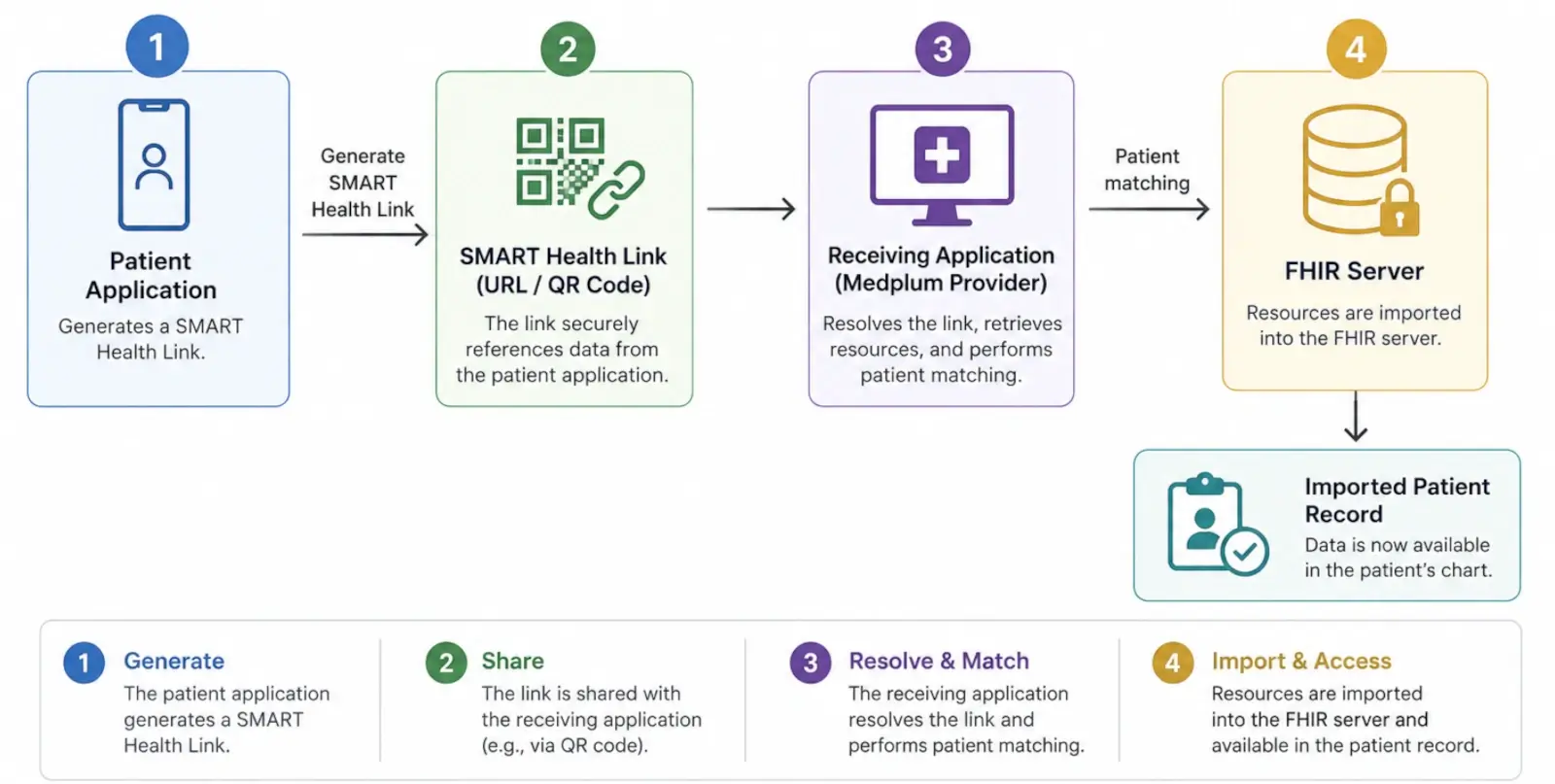
The remainder of this guide walks through each step.
Step 1: Generate a SMART Health Link
There are several publicly available implementations that can generate SMART Health Links.
| Implementation | Notes |
|---|---|
| CMS Reference Application | Official demonstration application for the KTC specification. Useful for validating basic interoperability. |
| Foo Medical | Demonstration application built on Medplum. Useful for testing and debugging. Not a production application and not participating in the CMS pledge. |
| Flexpa | Patient-facing implementation supporting SMART Health Links. |
Whenever possible, test using multiple independent implementations rather than relying exclusively on your own software.
Step 2: Import the SMART Health Link
Several applications can consume SMART Health Links.
For this guide we'll use the Medplum Provider application.
The Provider application includes:
- QR code scanner
- Direct URL import
- Patient matching workflow
- Resource review before import
- Import into a FHIR server
Step 3: Register for Medplum
Create a free account at:
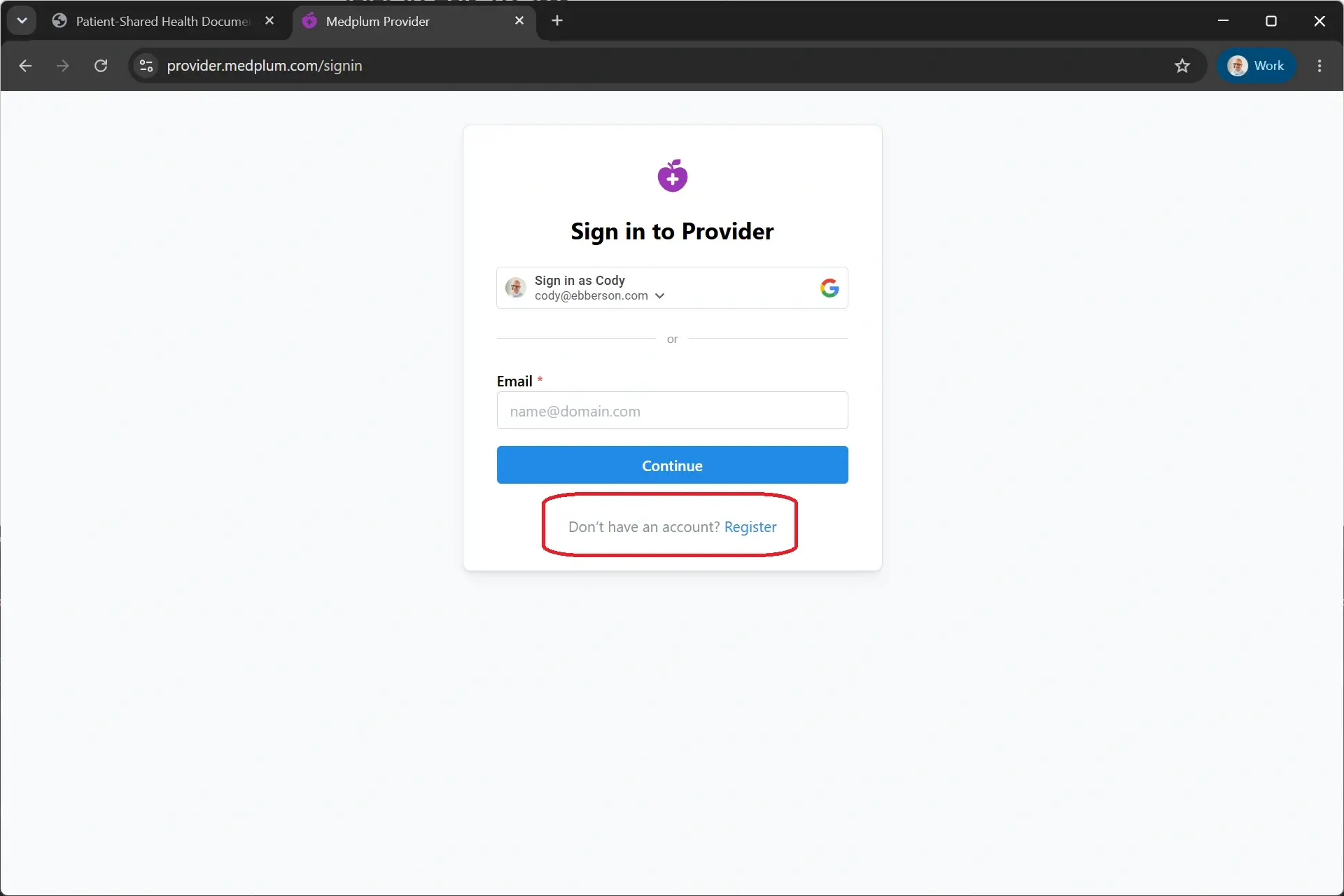
After registration, create a new project.
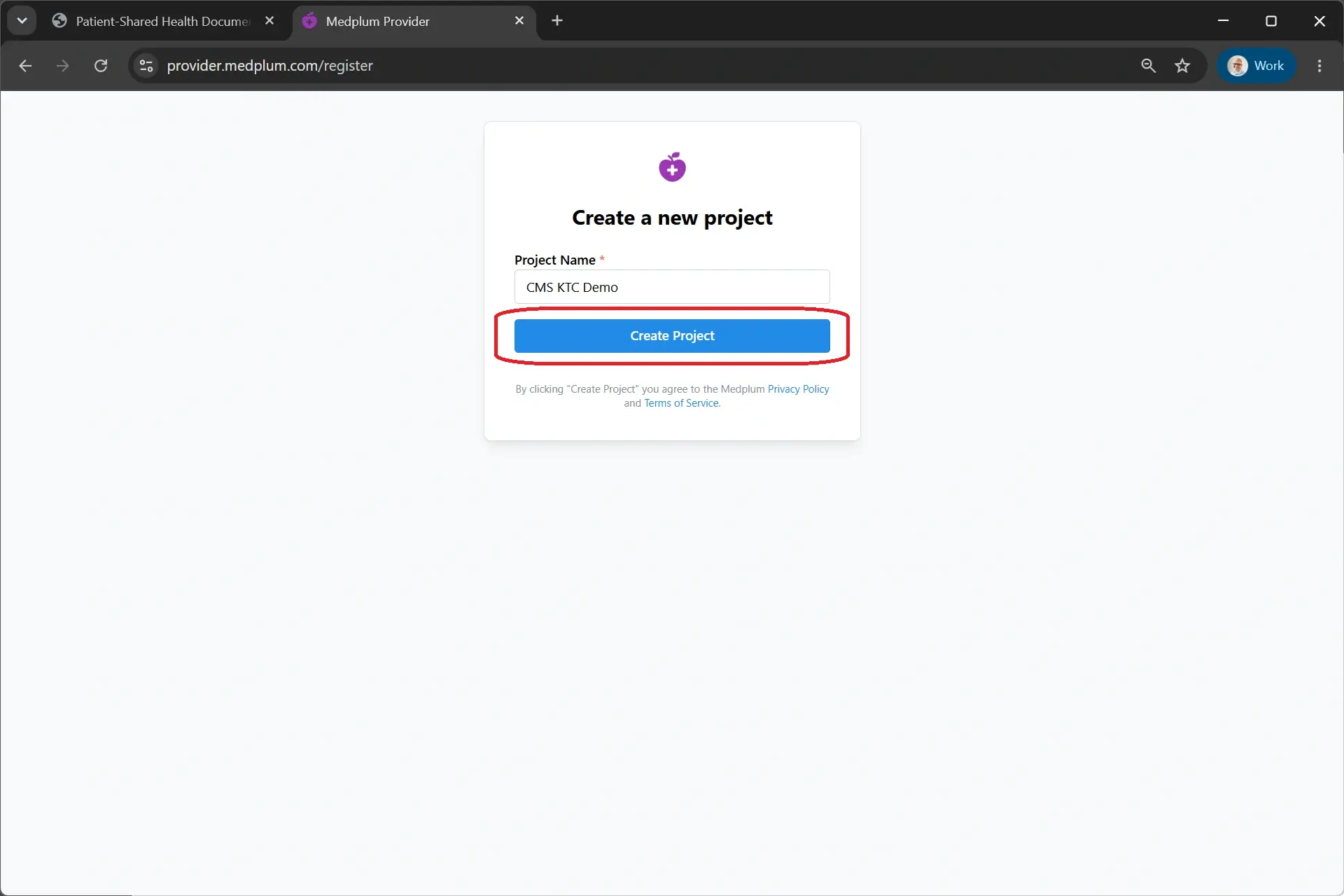
The project provides an isolated FHIR server where imported resources will be stored.
Step 4: Import the SMART Health Link
Navigate to SMART Health Link from the Provider application's navigation menu.
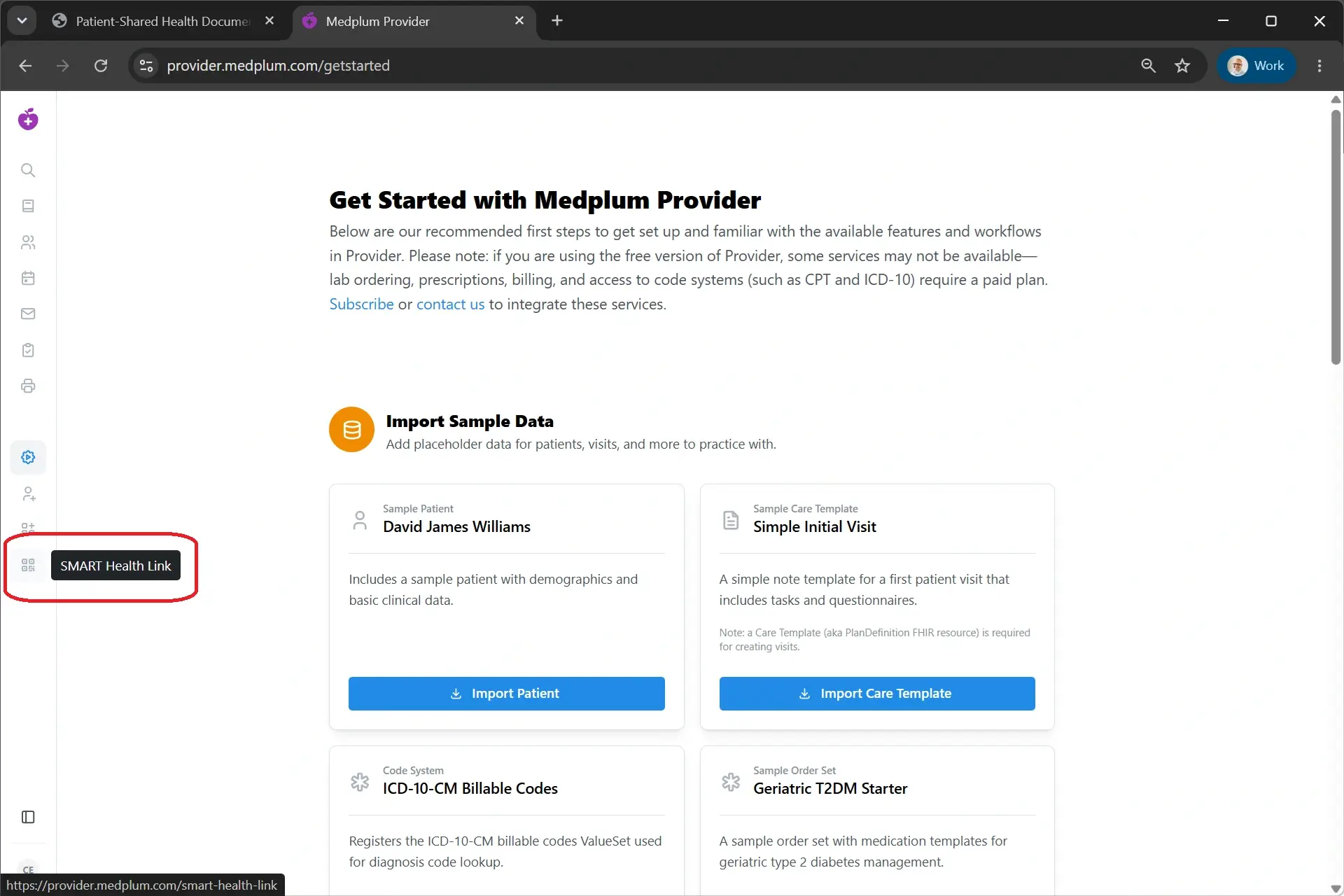
You may either:
- Paste the SMART Health Link URL
- Scan a QR code using your device camera
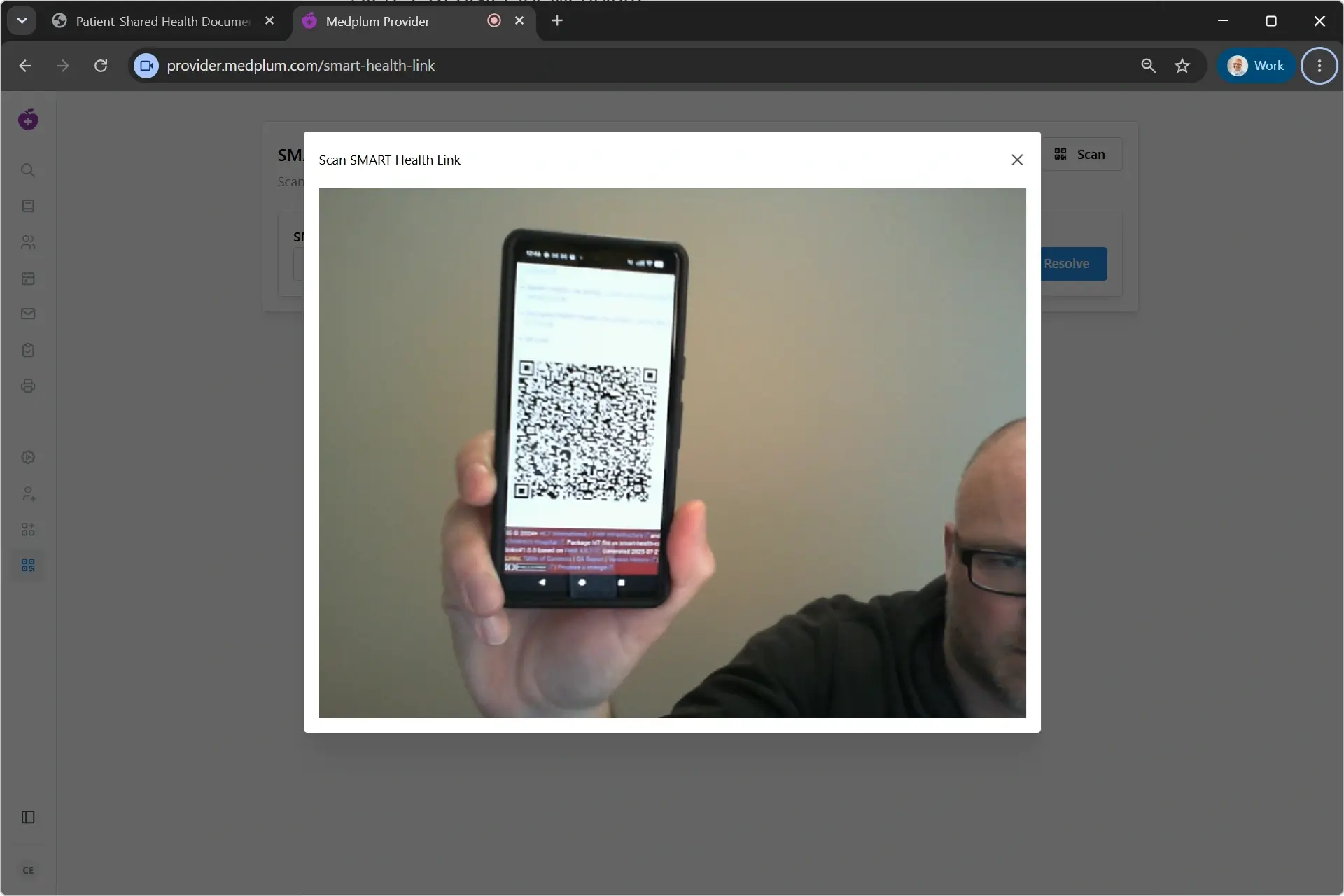
The Provider application resolves the SMART Health Link and retrieves the available resources.
Step 5: Resolve Patient Identity
One of the most important steps in any SMART Health Link workflow is patient identity resolution.
The receiving system attempts to determine whether the incoming patient already exists within the local FHIR server.
In Medplum, this uses the standard FHIR Patient/$match operation together with the CMS-recommended patient matching algorithm.
The workflow is:
- Incoming Patient
Patient/$match- Candidate Matches
- Select Existing Patient OR Create New Patient
- Continue Import
The user may choose an existing patient or create a new patient before continuing.
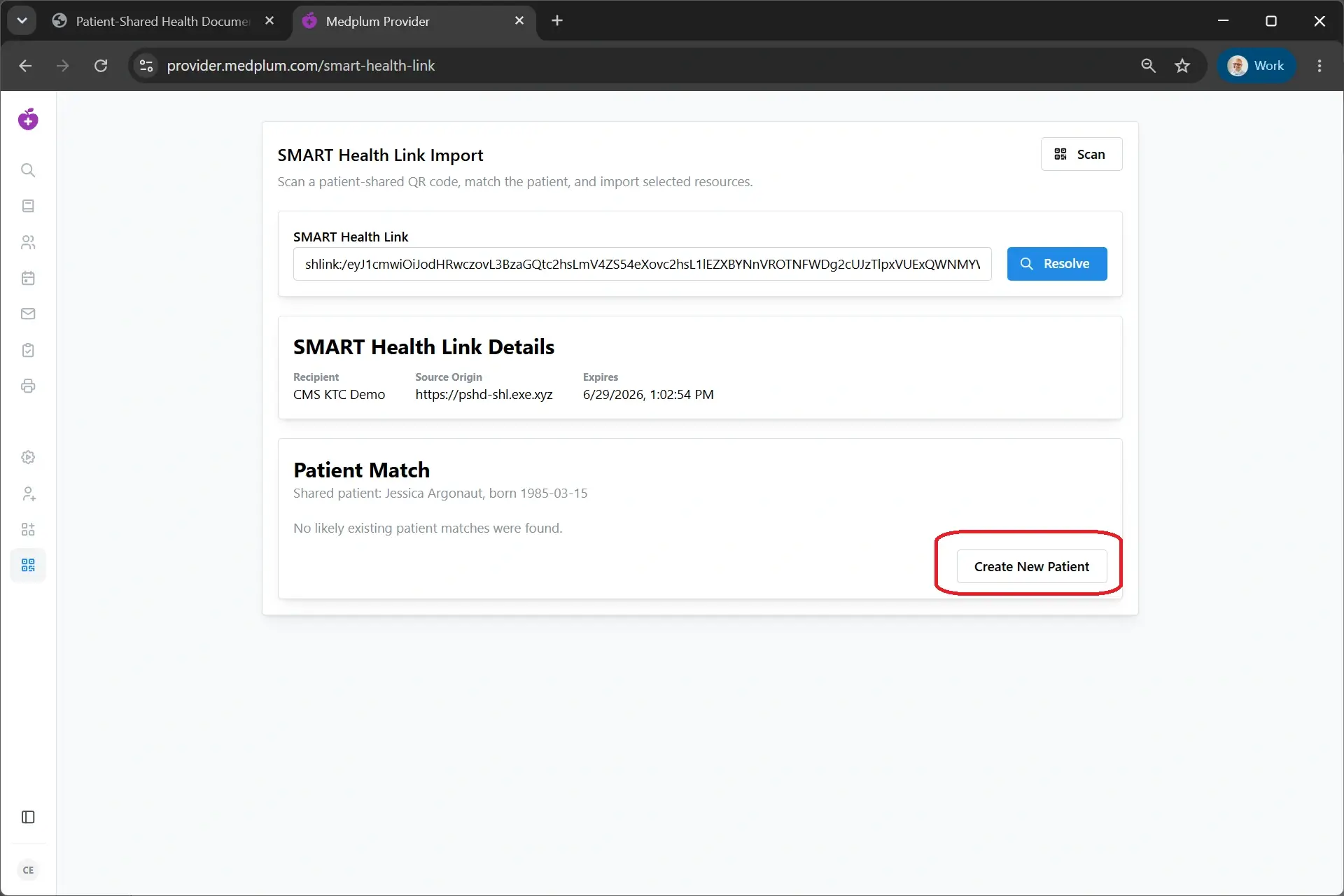
Step 6: Review Resources
After patient matching, the Provider application displays all resources available within the SMART Health Link.
Examples include:
- Patient
- AllergyIntolerance
- Condition
- Encounter
- Immunization
- Medication
- Observation
- Procedure
- Coverage
- ExplanationOfBenefit
The user can review the resources before importing them.
Step 7: Import Resources
Click Import to write the selected resources into the destination FHIR server.
Once complete, the imported data becomes part of the patient's chart.
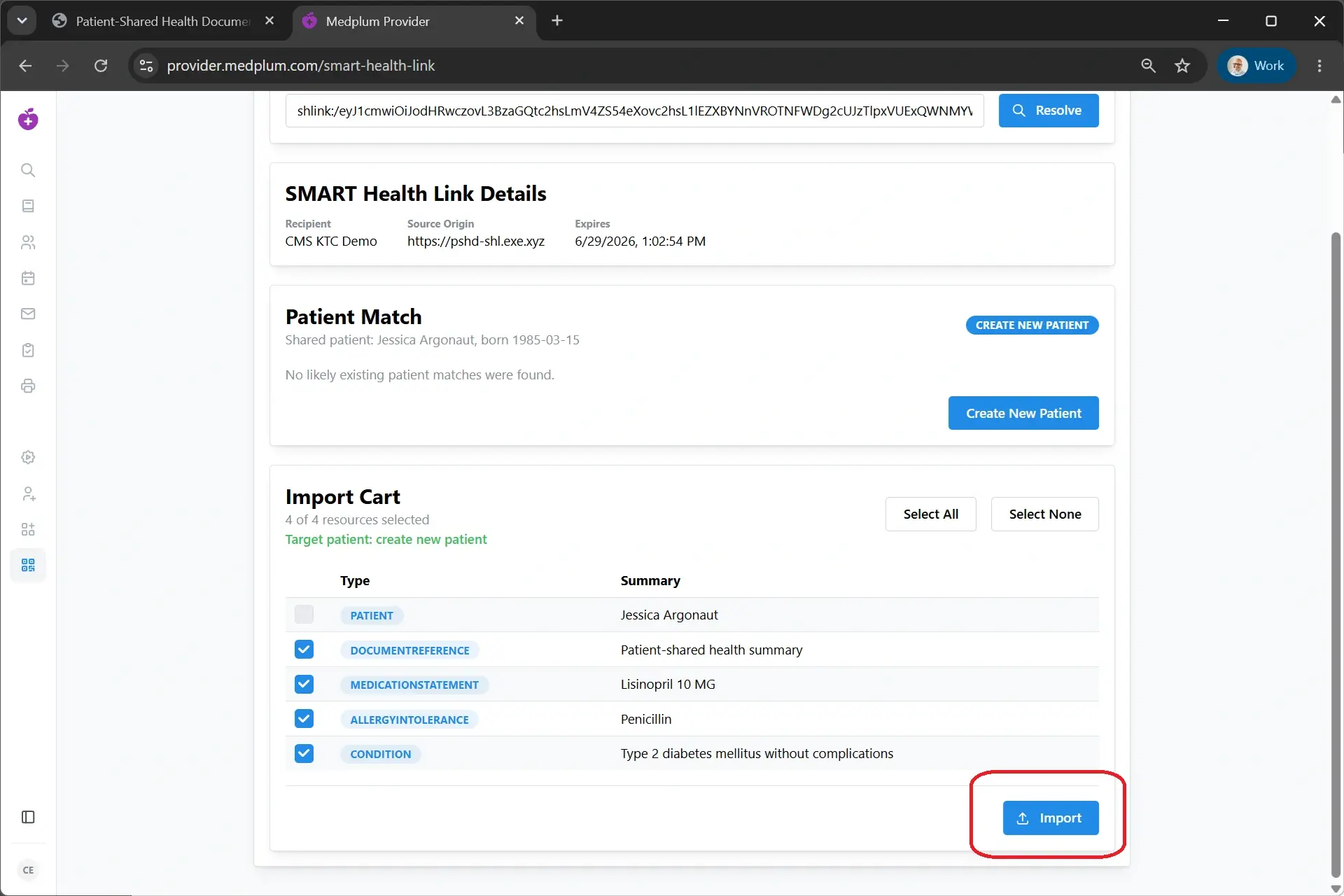
Step 8: Verify the Results
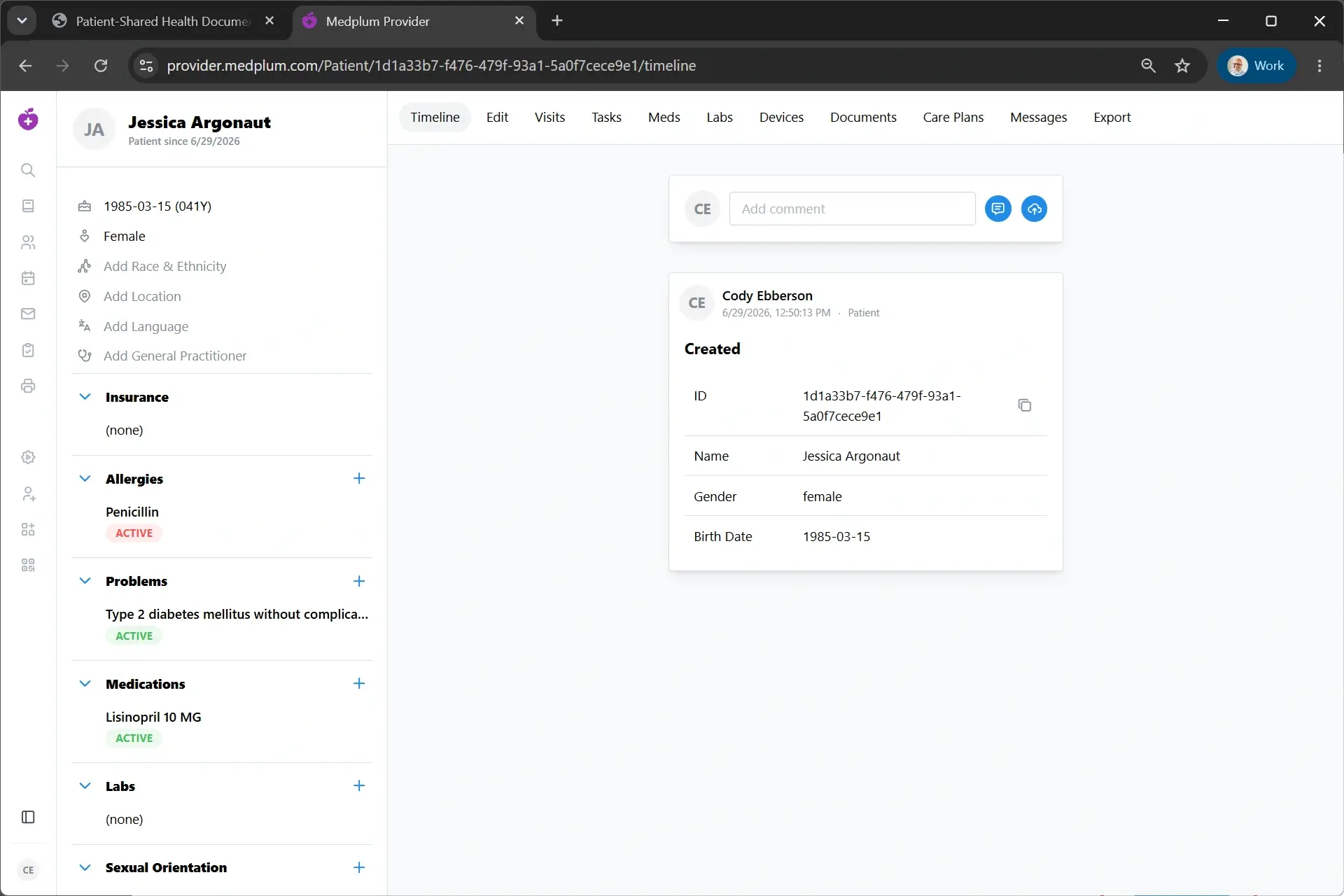
Navigate to the imported patient's chart.
Verify that:
- The patient demographics are correct.
- Clinical resources were imported successfully.
- Relationships between resources were preserved.
- References resolve correctly.
- No duplicate patient was created.
At this point, the interoperability workflow is complete.
About Medplum
Medplum is an open source healthcare developer platform that provides building blocks for modern healthcare applications.
Relevant SMART Health Link functionality includes:
- SMART Health Link FHIR operations
- QR code generation
- QR code scanning
- FHIR resource import
- Open source reference implementations
We hope these tools make it easier to build interoperable healthcare applications and to validate SMART Health Link implementations across the healthcare ecosystem.