External Identity Providers
Configure an OpenID Connect (OIDC) identity provider (IDP), such as Auth0 or AWS Cognito, and use the authorization-code flow to sign users in. This page covers both provider routing and the authorization-code flow, including Medplum handling the external IDP callback. For Medplum's Google-specific setup, see Google Authentication.
If your application obtains an external access token through its own login flow, use Token Exchange to obtain a Medplum token. Both approaches can use the same external IDP.
IDP Routing Strategies
When using external identity providers, you need to decide how to route users to the correct IDP. Medplum supports two primary strategies:
Application-based Routing
In this model, the Identity Provider is determined by the application the user is logging into. This is configured on the ClientApplication resource.
- How it works: You configure specific IDP details (Authorize URL, Client ID, etc.) on your Medplum
ClientApplication. - Use Case: You have a "Patient App" that uses Auth0 for all users, and a separate "Provider App" that uses Okta.
- Setup: Follow the Setup instructions below to configure the IDP on your
ClientApplication.
Domain-based Routing
In this model, the Identity Provider is determined by the user's email address. This is configured using Domain Configuration.
- How it works: You map an email domain (e.g.,
hospital.com) to an IDP. When a user enters their email, Medplum routes them to that IDP. - Use Case: You have enterprise customers who want their employees to log in with their corporate credentials (SSO), regardless of which app they are using.
- Setup: See the Domain-level Identity Providers guide.
Account matching is separate from provider routing. Medplum can match users by email or by an external subject identifier; see Using External IDs for provisioning and configuration.
Authorization-code Flow
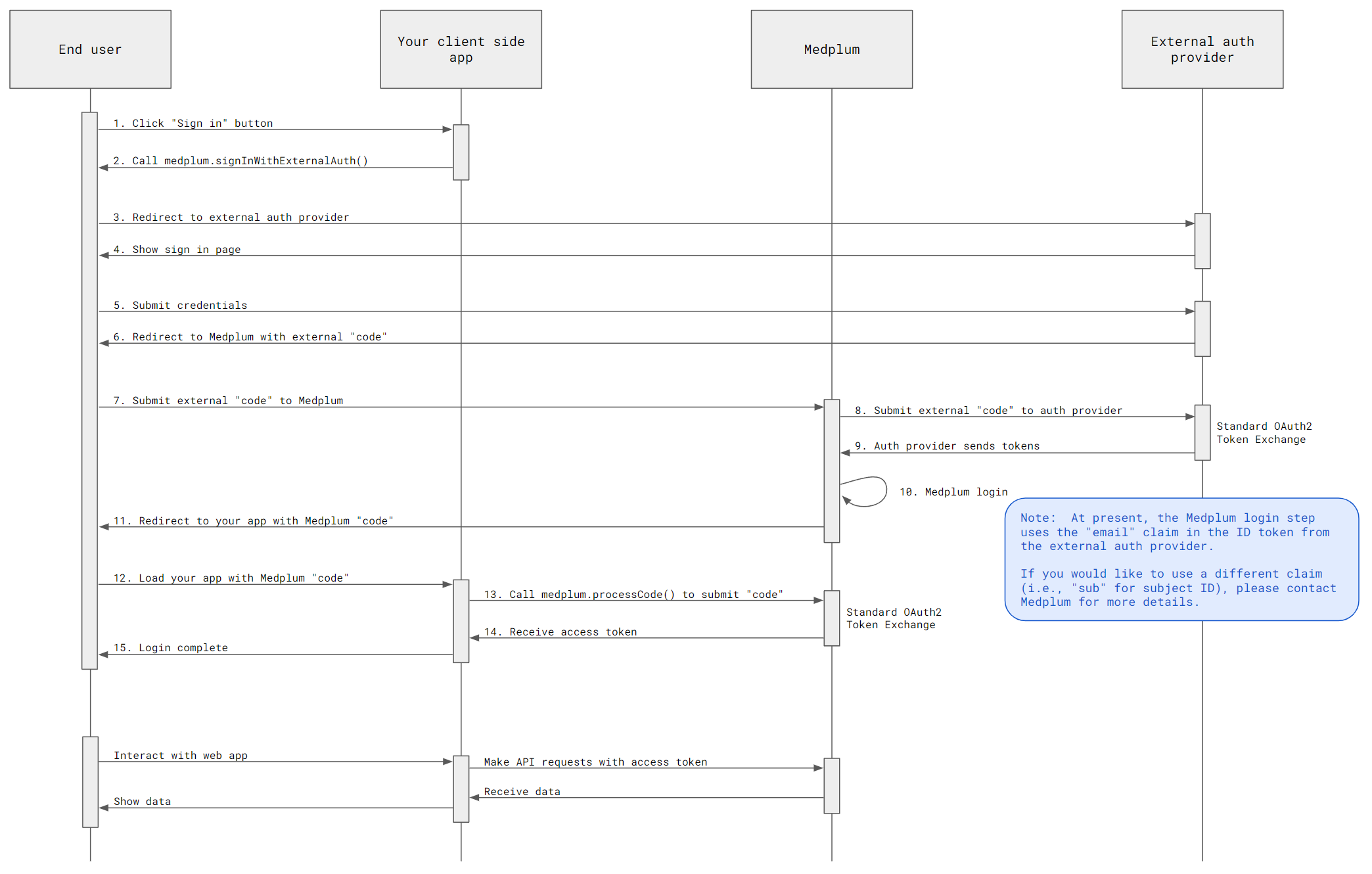
This flow is also called three-legged OAuth. The user authenticates with the external IDP, which redirects to Medplum's external authentication callback. Medplum then redirects to your application with a Medplum authorization code. Your application redeems that code for Medplum tokens.
The callback and code exchange are shown below:
Example repo
Medplum provides a minimal example application which demonstrates using Auth0 as an external identity provider. The example is approximately 100 lines of TypeScript code, and can be used as a starting point for an OIDC identity provider.
Setup
Setup your external authentication provider (Auth0, AWS Cognito, Okta, etc). Use "https://api.medplum.com/auth/external" as the "redirect URI" (also known as the "callback URL" in some systems).
The provider must support OIDC and return an id_token from its token endpoint. Request the openid scope; the SDK helper defaults to openid profile email. Configure the provider to return email for email matching or sub for subject matching.
Configure jwksUrl and issuer on the identity provider to enable ID-token signature and issuer verification. Medplum checks the audience against audience when configured, otherwise against the provider's clientId.
Note the following details:
- Authorize URL
- Token URL
- UserInfo URL
- Client ID
- Client secret
Setup your Medplum account:
- Register for a Medplum account
- Create a
ClientApplication - Set the "Redirect URI" to "http://localhost:8000/"
- Add an external identity provider with the details from above
The IdentityProvider resource is server-scoped. On self-hosted deployments, creating or editing server-scoped identity provider configuration requires super admin context. Project administrators can configure identity provider settings on project ClientApplication resources, but they cannot create server-scoped IdentityProvider resources unless they are operating as super admin.
Start the flow
The MedplumClient TypeScript class provides a signInWithExternalAuth convenience method:
| |
Handle the code
When the external identity provider flow redirects back to your web application, it will include a code query parameter. This code can be exchanged for a Medplum access token.
The MedplumClient TypeScript class provides a processCode convenience method:
| |
After the code is processed, the Medplum access token will be stored in the browser's local storage. The MedplumClient will automatically use the access token for all subsequent API calls.
FAQ
AWS Cognito
(If using the Cognito's hosted UI) Set the "redirect uri" by navigating to: Amazon Cognito > User Pools > [Your pool] > [Your App Client] > Edit Hosted UI > Allowed callback URLs
By default, Cognito does not include the
profilescope. You can add this navigating to: Amazon Cognito > User Pools > [Your pool] > [Your App Client] > Edit Hosted UI > OpenID Connect ScopesTo disable PKCE for Cognito login, do the following:
- In your client application, pass in
falsefor thepkceEnabledparameter ofsignInWithExternalAuth.
medplum.signInWithExternalAuth( EXTERNAL_AUTHORIZE_URL, EXTERNAL_CLIENT_ID, EXTERNAL_REDIRECT_URI, { projectId: MEDPLUM_PROJECT_ID, clientId: MEDPLUM_CLIENT_ID, redirectUri: WEB_APP_REDIRECT_URI, }, false, ),- In the Medplum App, navigate to your ClientApplication > Edit and set "PKCE Optional" to
true
- In your client application, pass in